





On this page
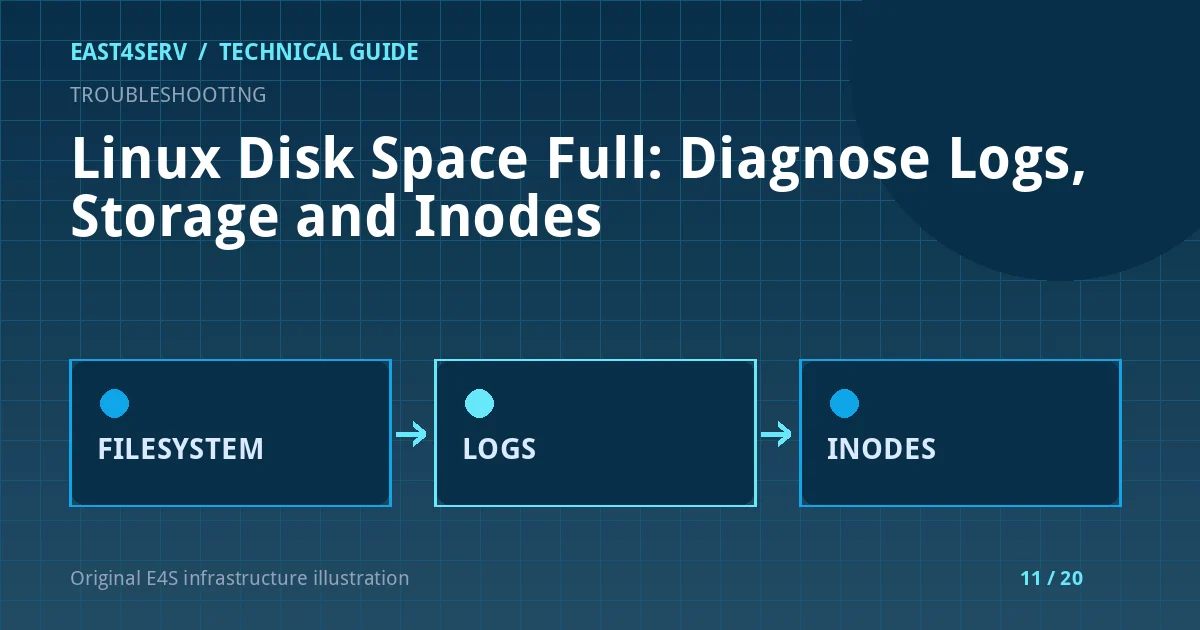
“No space left on device” can mean the filesystem has no free bytes, has no free inodes, is read-only, or has a quota limit. Deleting the largest visible file without finding the cause may remove audit evidence or still fail to free space if the file remains open. Diagnose which limit was reached first.
The following read-only commands are for recent Linux distributions. A production disk incident can affect databases, logs, and package management; avoid large scans on a heavily loaded filesystem and keep a recovery console available.
1. Check bytes, inodes, and mounts
Use df to identify which mounted filesystem is full. The application path may live on a separate volume from /var or /tmp. df -i checks inode exhaustion. findmnt helps verify the mount and filesystem type.
df -h
df -i
findmnt
If bytes are low but inodes are plentiful, look for large files. If inodes are exhausted while bytes remain, look for enormous numbers of small files such as sessions, cache entries, or temporary uploads. Do not run a recursive rm until ownership, retention, and application impact are known.
2. Narrow the directory safely
Start at the full mount, then measure likely directories. du follows the directory tree and may be slow on a very large volume; use -x to stay on one filesystem.
sudo du -xhd1 /var 2>/dev/null | sort -h
sudo du -xhd1 /var/log 2>/dev/null | sort -h
Use the correct mount point for your system; /var is just a common example. Check database data, container volumes, web uploads, caches, and backup copies. An unexpected duplicate backup on the same disk is a common operational problem, but deleting it may remove the only recoverable copy.
3. Inspect journal and application logs
Systemd journals can use significant storage. First measure usage and retention policy. Use the supported journalctl --vacuum-* controls only after your logging retention and incident evidence needs are reviewed.
sudo journalctl --disk-usage
sudo journalctl -p err --since '24 hours ago' --no-pager
Repeated exceptions may be both the cause of log growth and a symptom of the full filesystem. Repair the underlying error before cleaning the logs or they will refill. For application logs, use log rotation with ownership and service reload behavior appropriate to the app.
4. Look for deleted files still held open
When a process keeps a file descriptor open after the file is deleted, du may show less use than df. If lsof is installed, find deleted-but-open files. The command is diagnostic; avoid closing a critical process without planning.
sudo lsof +L1
If an application holds a huge deleted log, a controlled log reopen or service restart may release the space. Decide based on customer impact and whether the service can restart cleanly. Do not truncate a database file to reclaim space.
5. Recover safely and prevent recurrence
Choose the smallest approved cleanup: rotate an application log, expire old temporary files with known ownership, expand the volume, or move persistent data through a tested migration. Confirm space returned with df -h and df -i, then check the application and database for errors.
Add alerts for free bytes, inode use, log growth rate, and time to exhaustion. Set retention for logs, images, backups, and temporary uploads. A threshold of “90% used” means different things on a 20 GB filesystem and a 10 TB filesystem; include absolute free space and growth trend.
Troubleshooting and common errors
dffull butdutotals are small: inspect deleted open files, hidden mount points, quotas, and filesystem metadata.- Many small files, free bytes remain: inspect inode use and the process creating files.
- Only one container reports full storage: identify its overlay or volume and whether logs are unmanaged.
- Filesystem becomes read-only: inspect kernel and storage errors; do not treat it as simple capacity exhaustion.
- Space returns then disappears: monitor growth and fix the producer, not only the files it creates.
Security considerations
Logs can contain credentials, IP addresses, and personal data. Protect them during incident review and preserve required evidence before deletion. Restrict cleanup scripts to specific paths and verify symlink behavior; a broad privileged deletion command can affect unrelated customer data.
FAQ
Why does deleting a big log not free space?
The process may still hold it open. Check lsof +L1 and plan a safe log reopen or service restart.
Does df -h reveal inode exhaustion?
No. Use df -i as well.
Can I delete all files under /tmp?
Not without inspecting active users of that directory. Applications may rely on current temporary files or sockets.
Continue reading
For correlated host signals, see monitoring Linux health and investigating high CPU. Contact East4Serv for a scoped incident review.
References: GNU df documentation and systemd journalctl manual.