





On this page
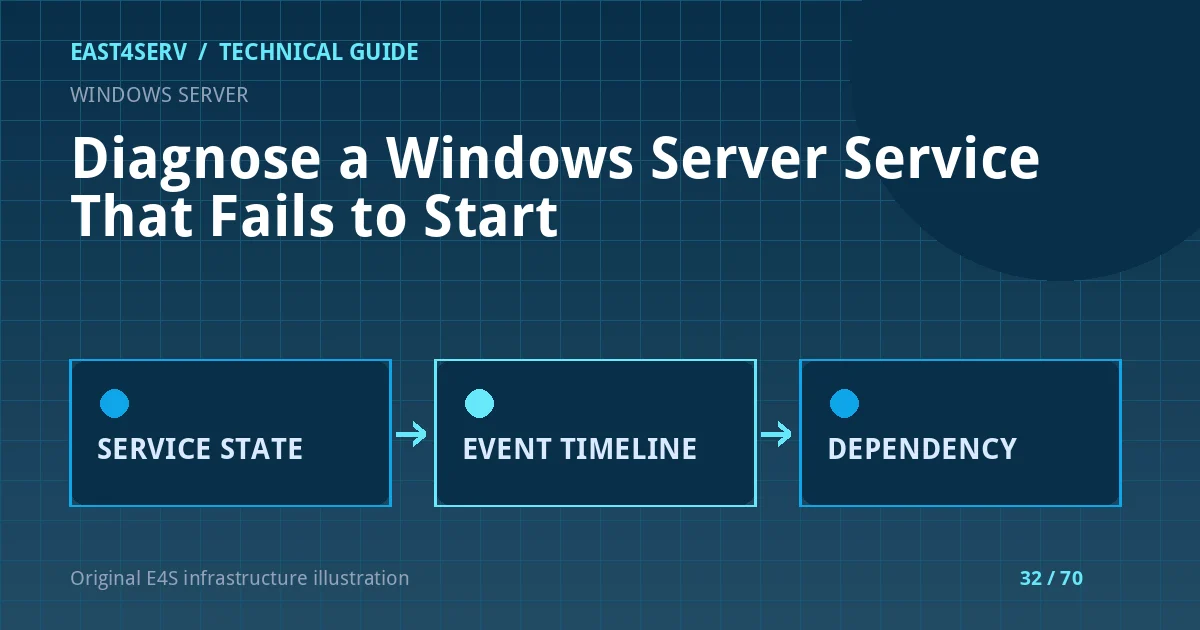
When an application service fails after reboot, the visible symptom may be a 502 response, a missed backup or a monitoring alert. Restarting it repeatedly can hide the first error or trigger duplicate work. This guide uses Windows service status, Event Viewer records and dependency checks to identify the failure before changing configuration. Commands are read-only PowerShell examples for supported Windows Server systems; use your actual service name.
Prerequisites and incident scope
Record the exact service name, host, first failure time, recent changes and dependent customer workflows. Ensure you have a safe administrative session and an approved escalation path. If the service controls payments, databases or provisioning, do not repeatedly start it until you understand whether its startup action is idempotent. Capture the current status and configuration before changing anything.
$name = 'ExampleService'
Get-Service -Name $name | Format-List Name, DisplayName, Status, StartType, DependentServices, ServicesDependedOn
Get-CimInstance Win32_Service -Filter "Name='$name'" | Select-Object Name, State, StartMode, PathName, StartName, ExitCode
Replace ExampleService with a verified installed service. The WMI/CIM query is illustrative; use a safe literal service name from the service inventory. Protect any paths or account names in shared incident notes. An automatic start type does not prove the service started successfully, and a running status does not prove the application is healthy.
Read the relevant event timeline
Open Event Viewer and examine the System log for Service Control Manager events near the failure. Also inspect the application-specific event log or file log. Event IDs and messages matter more than a generic “failed to start” label; capture the complete event text and timestamp. Compare that moment with Windows Update, credential rotation, a deployment, storage warnings and dependency startup. A service may time out because a database or network share was unavailable, not because its binary is broken.
Get-WinEvent -FilterHashtable @{LogName='System'; StartTime=(Get-Date).AddHours(-2)} -MaxEvents 100 |
  Where-Object ProviderName -eq 'Service Control Manager' |
  Select-Object TimeCreated, Id, LevelDisplayName, Message
On a busy server, narrow the time window and event source to avoid huge queries. The command retrieves recent events but does not diagnose root cause by itself. Application logs may contain sensitive paths, connection strings or customer data; redact them before sharing outside the operations team.
Check dependencies and account rights
Inspect services that the failed service depends on. A missing or delayed dependency can explain a boot-only failure. Verify the configured logon identity, password or managed service account state, and whether required files and network resources are accessible to that identity. Do not change a service to run as LocalSystem merely to bypass a permission error; that can grant far more authority than the application needs.
Check disk space, certificate validity, port conflicts and service executable path. If the binary path changed in a deployment, compare it with the approved release artifact. A Windows service can report running while its HTTP health endpoint returns an error; validate both layers. If the service starts manually but not at boot, investigate startup ordering, delayed dependencies and a race with external systems rather than adding arbitrary sleep loops.
Make one controlled change at a time
Before a restart, identify whether the service performs work on startup and whether a retry could duplicate orders or jobs. Record rollback instructions and obtain approval for impactful actions. A narrowly scoped configuration correction, credential renewal or dependency fix is preferable to rebooting every service on the host. After an approved change, compare Event Viewer entries and application health with the pre-change baseline.
Do not disable antivirus, firewall or access control as an expedient fix. If one control is genuinely blocking the service, collect the event evidence and create a limited, reviewed exception. Keep a timestamped change record and notify support if customer workflows were affected.
Troubleshooting and verification
If the status says “running” but users still fail, check the listener, reverse proxy, database and application route. If the service returns to stopped state immediately, inspect its own exit code and application log. If only the scheduled reboot exposes the issue, test the boot sequence in staging and compare it with manual startup. Ensure any recovery action survives another restart by verifying service configuration, not by rebooting production solely for a test.
FAQ: Should I set every service to Automatic (Delayed Start)? No; that may hide a dependency error and slow recovery. FAQ: Is restarting safe after a timeout? Only after checking whether startup can repeat non-idempotent work. Expected result: the failure has a timestamped cause, one controlled fix and verified customer workflows rather than only a green Windows service icon.
Related reading: Linux service startup diagnosis and recovery runbooks. East4Serv server management can help investigate recurring service failures.
Primary references: https://learn.microsoft.com/en-us/troubleshoot/windows-server/performance/troubleshoot-startup-problems and https://learn.microsoft.com/powershell/module/microsoft.powershell.management/get-service.