





On this page
WordPress sites can have several caches: browser, CDN, reverse proxy, full-page plugin, object cache and PHP opcode cache. Purging the wrong layer may do nothing, while purging everything on a busy site can cause a traffic spike. This guide helps identify which layer serves stale content and how to invalidate it safely. It applies to self-hosted WordPress; managed hosts may expose different controls.
Prerequisites and symptom definition
Record the exact URL, what changed, who sees the old content and whether they are logged in. Note the publishing time and the expected version. Compare a normal browser, a private window and an authorized direct-origin request where possible. Do not bypass a CDN by exposing the origin publicly or sharing secret origin addresses. Keep a screenshot and response headers with a timestamp; a vague “cache broken” report is hard to reproduce.
curl -sSI https://example.com/page/
Replace the URL with a page you operate. A HEAD request may be handled differently from a GET request by a cache or app, so confirm with a normal browser too. Look for documented cache-related headers, Age, Cache-Control or CDN-specific indicators, but do not assume one header reveals every layer. Avoid collecting visitor cookies in a public ticket.
Separate page cache from object cache
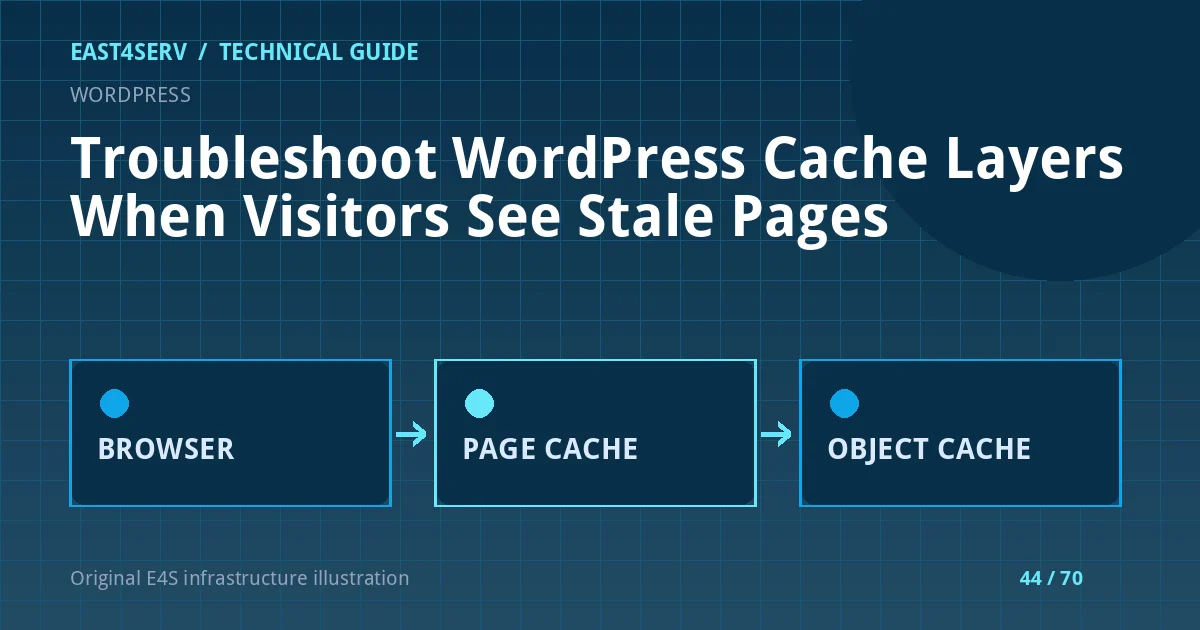
A full-page cache can serve rendered HTML without running WordPress for every anonymous visit. An object cache stores application data such as query results; it does not necessarily store complete HTML. The browser or CDN may keep static assets even after the HTML changes. If a page is fresh when logged in but stale anonymously, inspect full-page or CDN cache rules. If both are stale, verify the actual WordPress post and database state before purging.
Never cache personalized account, cart or checkout HTML as if it were public. WooCommerce and membership plugins may set cookies or headers that should bypass a shared page cache. Review the plugin and CDN's supported integration instead of writing a broad cookie rule from memory. Test an authenticated account and a guest after each cache policy change to ensure one customer's content cannot be served to another.
Trace the stale layer
Start at the application: verify the edited post is published and correct in the WordPress editor. Then compare a direct application response (through an authorized route), reverse-proxy response and public CDN response. If the origin is correct but the edge is stale, inspect CDN TTL and purge behavior. If the origin itself is stale, inspect the page-cache plugin and server cache. If HTML is correct but a stylesheet is old, use versioned assets and verify browser/CDN cache control.
Use the cache system's narrow purge for one URL when available. A global purge can stampede the database under high traffic. If object-cache data is stale, identify the key owner or plugin before flushing all Redis keys; a shared Redis instance might also hold sessions, queues or another site's data. Never run FLUSHALL as a generic WordPress troubleshooting step.
Validate cache keys and variation
Determine whether the cache varies by hostname, language, device, authentication state and relevant cookies. A bilingual page or mobile-specific variant can appear correct for one visitor but wrong for another if cache keys omit a required dimension. Conversely, unnecessary variation can make every request miss the cache. Record hit/miss behavior over several requests rather than inferring it from one response.
Check scheduled invalidation after an article update, product price change and menu edit. A cache that requires manual purges for every normal publishing action has an integration problem. Avoid adding a low global TTL as a substitute for correct invalidation if it increases origin load and still leaves sensitive cache-key mistakes unresolved.
Troubleshooting and security
If a new post never appears, check publication status, scheduled publishing, database replication and the blog query before blaming cache. If a page changes only after a hard refresh, inspect browser-cached assets and file versioning. If one user sees another's data, disable the affected shared cache path immediately through the approved incident process, preserve evidence and review cache keys and private-page bypasses. Do not hide the incident behind a general cache clear.
FAQ: Does clearing the browser cache fix the site for everyone? No; it only changes that browser's local state. FAQ: Can Redis object cache safely hold sessions and pages in the same namespace? Only with deliberate separation and supported configuration. Expected result: the team identifies the stale layer, invalidates the right object and retains safe separation between public and personalized pages.
Related reading: WordPress update workflow and Redis caching for Laravel. East4Serv hosting operations can review cache architecture and invalidation.
Primary references: https://wordpress.org/documentation/article/faq-i-make-changes-and-nothing-happens/ and https://wordpress.org/documentation/article/wordpress-site-maintenance/.