





On this page
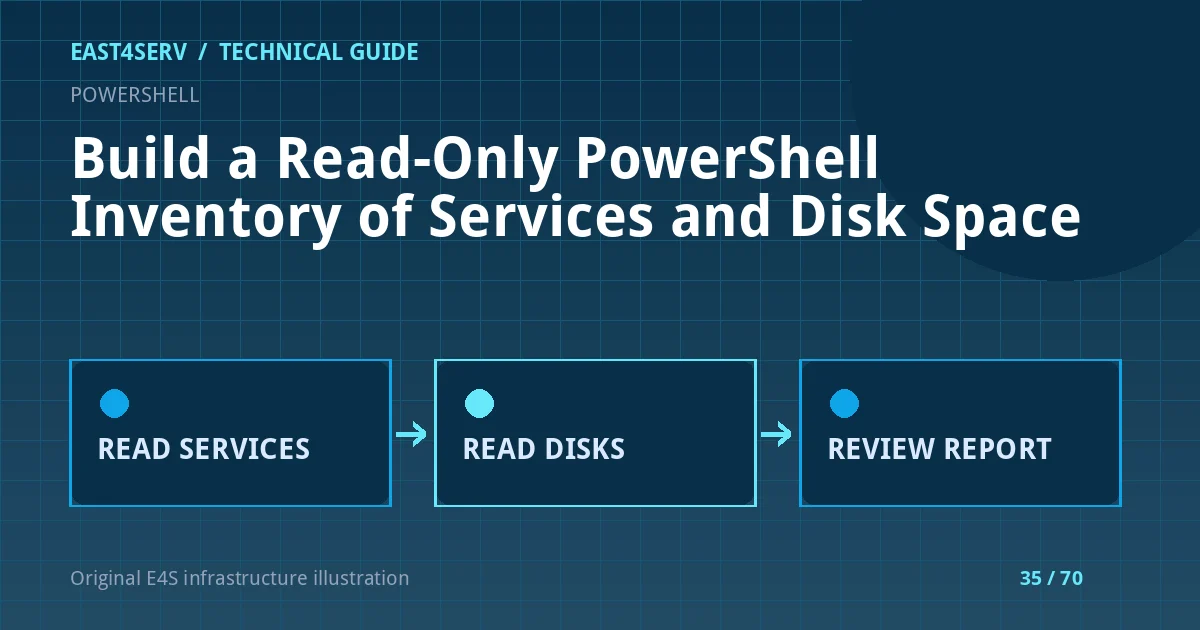
An operational inventory is useful only if it identifies the host, collection time, relevant services and storage conditions without changing anything. This guide builds a small read-only Windows Server report using PowerShell objects. It is meant for authorized administrators on supported Windows Server installations, not for scanning machines you do not manage. The examples are illustrative and should be tested in an isolated environment before adding them to scheduled automation.
Prerequisites and data handling
Decide which servers are in scope and which service names matter to the application. Keep inventory output in a protected directory: service names, volume labels and hostnames can reveal infrastructure structure. The operator account needs permission to query the local machine, but should not be given domain-wide administrator rights merely to collect a report. For remote collection, use approved PowerShell remoting and explicit targets rather than opening new management ports ad hoc.
Check the environment and establish the report timestamp:
$collectedAt = Get-Date -Format 'o'
$hostName = $env:COMPUTERNAME
$PSVersionTable.PSVersion
An ISO-style timestamp helps correlate the report with monitoring and ticket events. Add the time zone or use UTC consistently when reports move between regions. A local report that lacks a hostname can easily be attached to the wrong incident.
Inventory service state
Get-Service returns service objects. Filter to the small set relevant to the workload. A stopped service can be expected, so compare the status to the documented desired state rather than flagging every stopped service as an incident. Keep a separate mapping of service names to application functions and owners.
$wanted = @('W3SVC', 'Spooler')
$services = Get-Service -Name $wanted -ErrorAction SilentlyContinue |
  Select-Object Name, DisplayName, Status, StartType
$services
The names are examples; Spooler may be intentionally disabled on a web server. SilentlyContinue can hide a missing service, so a real inventory script should compare $wanted with returned names and record missing entries as a separate finding. Avoid automatically starting services from a collection script. Inspect event logs and dependencies first if a required service is unavailable.
Inventory local disk capacity
Use Get-CimInstance Win32_LogicalDisk to list fixed local volumes. Convert byte values to GiB for a human report while retaining the raw numbers for precise calculations. Check for null or zero size before dividing. Network shares and mount points can require separate discovery; this command is not a complete storage inventory.
$disks = Get-CimInstance Win32_LogicalDisk -Filter 'DriveType=3' |
  Where-Object { $_.Size -gt 0 } |
  Select-Object DeviceID, VolumeName,
    @{Name='SizeGiB';Expression={[math]::Round($_.Size / 1GB, 1)}},
    @{Name='FreeGiB';Expression={[math]::Round($_.FreeSpace / 1GB, 1)}},
    @{Name='FreePct';Expression={[math]::Round(100 * $_.FreeSpace / $_.Size, 1)}}
$disks
Free percentage alone is not sufficient for a database or a log volume with known growth. Set thresholds from observed workload needs and time to respond. A volume can become critical even while the operating system remains healthy. Do not run automated cleanup from this inventory step; determine what consumes space and whether logs or backups are under retention obligations.
Package a controlled report
Add the hostname and timestamp to a structured object, then export to a protected path if needed. Include a collection result for each expected component, including “not found” rather than silently omitting it. Redact account names or internal paths before sharing outside the operations team. If the report will be mailed, avoid attaching raw service configuration that might contain secrets.
[pscustomobject]@{
  Computer = $hostName
  CollectedAt = $collectedAt
  ServiceCount = @($services).Count
  DiskCount = @($disks).Count
}
This summary object does not include the detailed arrays; a production script should deliberately serialize or store them according to its reporting contract. Do not rely on console formatting as the data format. For scheduled execution, log failures, use a dedicated low-privilege identity and test the script's working directory.
Troubleshooting and security checks
If a service is missing, confirm its exact service name and whether its Windows feature is installed. If the disk query returns no volumes, check permissions and CIM/WMI health before claiming the host has no disks. If remote queries time out, verify existing management policy rather than weakening the firewall. Confirm that the inventory does not include another customer's assets in a shared environment.
FAQ: Does this prove the application is working? No; it only reports service and disk state. Add application health and a safe customer-flow check separately. FAQ: Can this be run every minute? Only after measuring load and deciding whether that frequency is useful. Expected result: a timestamped inventory that helps an operator spot a missing critical service or low capacity without changing the server.
Related reading: PowerShell pipeline fundamentals and Windows service failure diagnosis. East4Serv monitoring can help connect inventory with alerting where that service is available.
Primary references: https://learn.microsoft.com/powershell/module/microsoft.powershell.core/about/about_objects and https://learn.microsoft.com/en-us/powershell/module/microsoft.powershell.management/get-service?view=powershell-7 and https://learn.microsoft.com/en-us/powershell/module/microsoft.powershell.core/about/about_pipelines?view=powershell-7.6.