





On this page
Remote Desktop is useful for administration, but an unrestricted public RDP endpoint invites password attacks and creates a direct path to a sensitive host. A safer design starts with named accounts, network restriction, a supported gateway or access path, strong authentication and monitoring. This guide is a planning and validation checklist for supported Windows Server releases. It does not provide a one-line firewall change because the right rule depends on the actual access architecture.
Prerequisites and access inventory
List the people and systems that need remote administration, the source networks they use and the servers they must reach. Identify any existing VPN, Remote Desktop Gateway, privileged access system or cloud management channel. Record how administrators regain access if a firewall or gateway change fails. Do not disable the current access route until the replacement has been tested from a second session.
Read the current listener and firewall policy in an authorized PowerShell session:
Get-NetTCPConnection -LocalPort 3389 -State Listen -ErrorAction SilentlyContinue
Get-NetFirewallRule -DisplayGroup 'Remote Desktop' |
  Select-Object DisplayName, Enabled, Direction, Action
Port 3389 is the conventional RDP port, but your environment may use a gateway or different exposure. A listening socket does not prove that the internet can reach it; inspect upstream firewall and security-group policy as well. Do not paste public IP allowlists or gateway details into a public article comment.
Limit who and what can connect
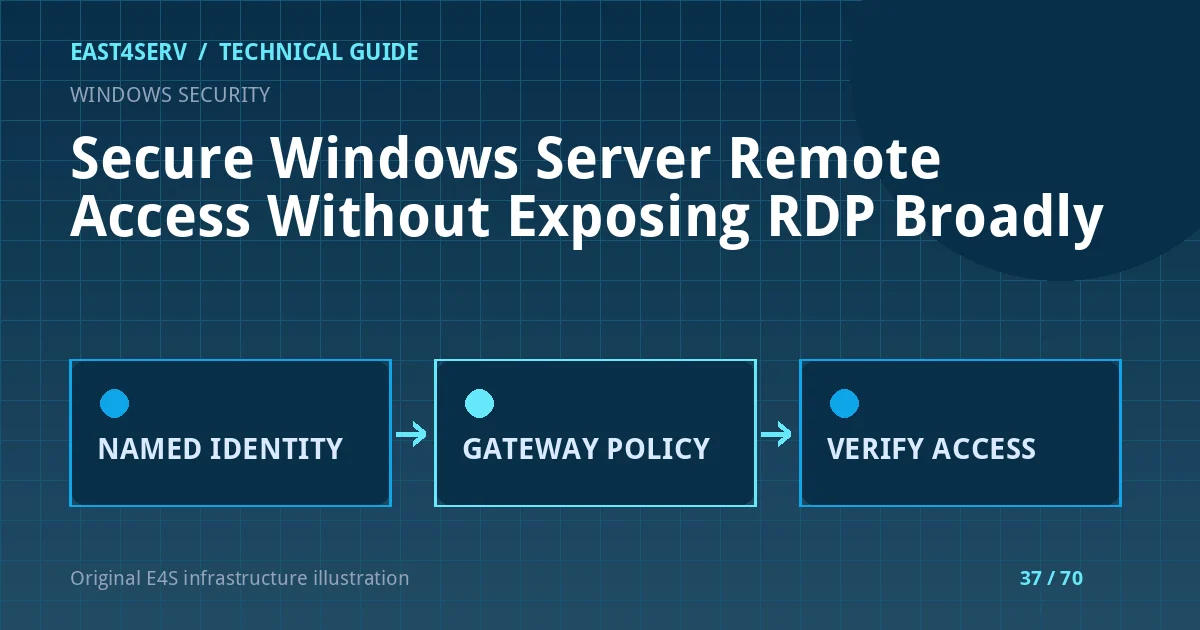
Use named administrator identities and review membership of the local Administrators and Remote Desktop Users groups. Grant only the necessary server scope. Remote Desktop Gateway can mediate access to internal hosts; its Connection Authorization Policy decides who may enter the gateway, while its Resource Authorization Policy decides which resources they may reach. Configure valid TLS certificates and the chosen MFA integration according to the supported architecture. A gateway is not a substitute for patching or least privilege on the destination host.
Restrict direct RDP to approved private networks or management sources where possible. A VPN can reduce internet exposure, but the VPN identity and endpoint also need MFA, patching and monitoring. Do not rely on moving the service to a nonstandard port as the principal defense. Remove shared accounts, require strong sign-in policy and review lockout settings so legitimate administrators are not denied during an incident.
Stage a safe change
Before restricting a source range, verify the public and private addresses actually seen by the server or gateway. Test from an authorized second network session. Keep the current session open while validating the new path. Prepare a timed rollback or console-access route before applying a rule that could lock out administrators. Change one layer at a time: gateway policy, upstream firewall, host firewall and user authorization have different failure modes.
After the change, verify successful authorized access and denied unauthorized access in a controlled test. Use safe test accounts rather than repeatedly guessing credentials on production. Check the gateway and Security event logs for failed sign-ins. Alert on repeated failures and unusual source locations, but do not automatically block an entire shared ISP address based on one attempt.
Protect credentials and sessions
Use supported security features appropriate to the environment, including Network Level Authentication and, where the prerequisites fit, Remote Credential Guard. Verify compatibility before requiring a feature for all clients. Do not copy passwords into RDP connection files or support tickets. Set idle session policy and review disconnected administrative sessions. Prefer just-in-time privileged access where available.
Remote administration often reaches sensitive customer systems; record changes and separate customer access from Owner infrastructure access. If a support technician needs a single server for a short period, grant time-bound rights to that asset rather than broad domain rights.
Troubleshooting and validation
If users cannot authenticate, distinguish gateway denial, MFA failure, destination permission and network reachability. If the gateway allows access but the host refuses it, inspect host group membership and NLA requirements. If access works from one site but not another, compare source allowlists and routes. Never respond by opening 3389 to the entire internet without a reviewed emergency plan.
FAQ: Is a changed RDP port enough? No; it only changes where scans find the service. FAQ: Does MFA at the gateway protect every direct RDP path? No; direct paths must be closed or governed separately. Expected result: authorized administrators retain a tested recovery route while unnecessary public RDP exposure is removed.
Related reading: Windows Server security baselines and service startup diagnosis. East4Serv security and server operations can review remote access architecture.
Primary references: https://learn.microsoft.com/en-us/windows-server/remote/remote-desktop-services/remote-desktop-services-overview and https://learn.microsoft.com/en-us/entra/identity/authentication/howto-mfa-nps-extension-rdg.