





On this page
Security fixes matter, but an unplanned package upgrade can restart a service, change a dependency or require a reboot. A production update process therefore needs more than one command: inventory, a tested backup, a change window, package review, health checks and rollback. This guide covers routine package updates on supported Ubuntu Server and Debian releases. It does not cover a major operating-system release upgrade, which needs a separate compatibility and migration plan.
Prerequisites and change boundary
Confirm the distribution and release, active services, storage headroom and who owns the application. Record the maintenance window and the acceptable interruption. Have console or out-of-band access if you are changing a remote host; an SSH session can fail during a network or daemon update. Know where backups are stored and perform a restore check on an isolated environment. A backup job that merely reports “success” is not a rollback plan.
cat /etc/os-release
df -h /
systemctl --failed --no-pager
apt-cache policy openssh-server
apt-cache policy is an example for one important package. Choose packages relevant to your host. Capture application health before updating so you can distinguish a new failure from an existing problem. For databases, review their own backup and upgrade procedures; a VM snapshot by itself may not provide an application-consistent recovery point.
Review repositories and pending changes
Use trusted, intended repositories. An unexpected third-party repository can replace a package or introduce a version incompatible with the application. Refresh metadata, then inspect the proposed upgrade before approving it. Package manager output is a plan, not proof that the change is harmless.
sudo apt update
apt list --upgradable
sudo apt-get -s upgrade
The simulated apt-get -s upgrade does not install packages. Review held packages, new dependencies and any proposed removals. Do not use a blanket -y on an unfamiliar production host. On Debian, upgrade and broader dependency-changing operations have different effects; on Ubuntu, unattended upgrades may already have applied some security updates. Check the current repository policy and automation first to avoid duplicate work or surprise reboots.
Prepare rollback before applying packages
Document the versions being changed and the application deployment artifact. Preserve database state using the supported database backup method, and retain the previous application release. For stateful workloads, restoring only package files may be insufficient after a schema or data migration. Decide in advance when to roll back and who has authority to do so. Test the rollback path in staging or an isolated clone when possible.
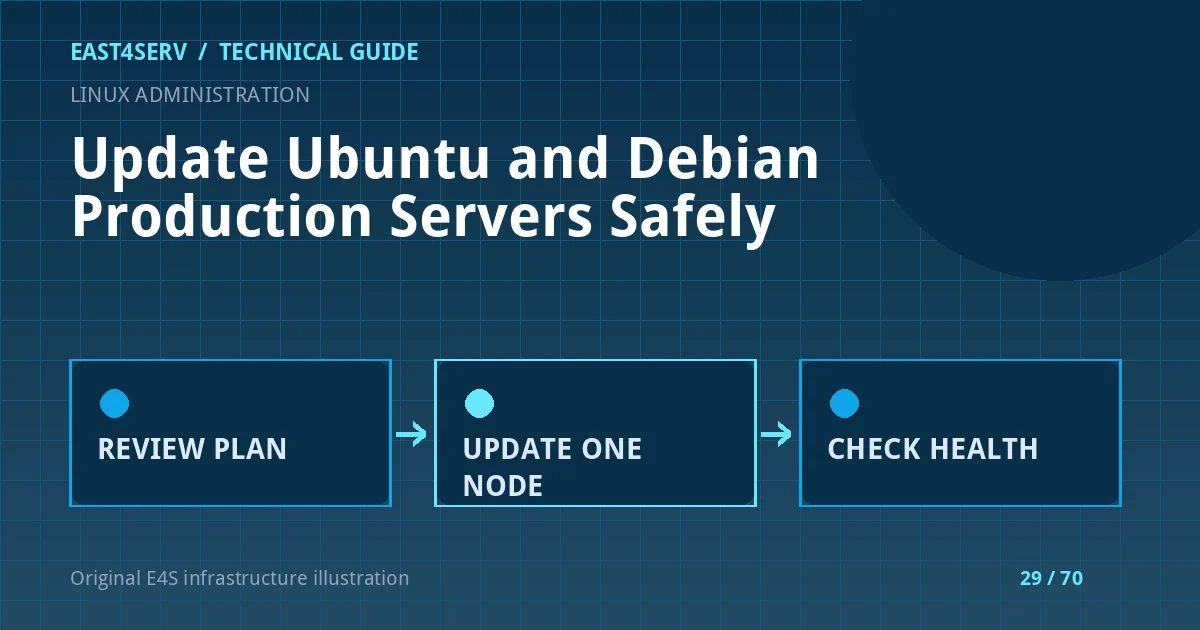
If the host is part of a pool, drain one node and update it first. Verify application health and customer workflows before proceeding to the next node. If there is no spare capacity, announce the window and plan for interruption. Never update all redundant nodes simultaneously merely for speed.
Apply and validate in a controlled window
After review, a routine package step may use the following command. It can restart services and change running binaries, so do not run it in this tutorial's QA environment or in production without an approved window:
sudo apt upgrade
Read configuration-file prompts carefully; keeping an old config can preserve a local customization, but may also omit a new required setting. Check service status, application health, login, queues, database and public pages after the operation. If the kernel or a critical library changed, determine whether a reboot is required by your distribution's guidance. Schedule and validate any reboot separately; do not assume a package update is finished while the old kernel remains active.
systemctl --failed --no-pager
journalctl -b -p err --no-pager -n 50
These commands are diagnostic. Inspect the actual application logs and synthetic health endpoints as well. A zero exit code from apt does not prove the website, worker or payment callback still functions.
Automatic security updates and common failures
Ubuntu documents unattended-upgrades and its configuration in /etc/apt/apt.conf.d/. Determine what origins are allowed, whether reboots are automatic and where its logs are written before changing it. Automation can be appropriate, but important production services still need monitoring and a rollback path. Debian installations may use different package sets and local policies; verify rather than copy a setting blindly.
If apt reports a lock, identify the running package manager instead of deleting lock files. If a repository signature fails, do not disable signature verification; correct the repository or key configuration. If the application fails afterward, compare the changed package list and the pre-change health baseline. Restore through the tested recovery plan rather than guessing at package downgrades.
FAQ: Should I run dist-upgrade or full-upgrade routinely? Only after reviewing dependency changes and removals for your distribution and workload. FAQ: Can I update over SSH? Yes with an approved recovery channel, but avoid changing SSH/network dependencies without console access. Expected result: supported packages are updated, core workflows pass, and a documented rollback remains available.
Related reading: Linux backup and restore testing and Diagnose a systemd service after reboot. East4Serv offers managed server operations for planned maintenance.
Primary references: https://ubuntu.com/server/docs/how-to/software/automatic-updates/ and https://www.debian.org/doc/manuals/debian-handbook/sect.apt-get.tr.html.